A printer can look like a bargain until you need the first replacement cartridges. Or you get it home and discover that printing from your phone isn't as straightforward as the box suggested.
Before buying a printer, check three things: what you'll print, whether it works with your devices, and what it will cost to keep running. Then look at the extras, such as scanning and automatic double-sided printing.
Here's the checklist I'd work through before choosing one for home.
1. What will you print, and how often?
Start with an ordinary month. Do you print a few forms, school worksheets, colour documents or photographs? Will the printer sit unused for weeks, or handle work every day?
That helps narrow down the type:
- A black-and-white laser printer is worth comparing if you mainly want text and don't need colour. It uses toner powder rather than liquid ink, so toner doesn't dry out between jobs.
- A cartridge inkjet may suit a smaller purchase budget and a mix of colour documents and photos. Check cartridge costs and the manufacturer's advice about regular use and maintenance.
- A refillable ink-tank printer is also an inkjet. It is worth comparing for regular colour printing, but weigh the purchase price against how much you'll actually print.
Brother's comparison of ink-tank, laser and cartridge inkjet printers explains the differences. The right choice still depends on the particular machine and your use.
If you only print a handful of pages a year, it may be simpler to use a local printing service when needed. You don't have to buy a printer just because you're buying a laptop.
For photographs, look at sample prints on the paper you expect to use. A printer that produces clear documents isn't automatically the right choice for family photo prints.
2. Will it work with your computer and phone?
Write down the devices that need to use it: Windows laptop, Mac, Chromebook, iPhone, iPad or Android phone. Include the operating-system version where possible.
Check the exact printer model on the manufacturer's official support page. Similar model names can have different connections or features. Look for current software support, not just an old review saying it works with Windows or Mac.
For an iPhone or iPad, check for Apple AirPrint support. For Android, Mopria's mobile-printing guidance is another useful compatibility check. Confirm that the app you want to print from offers printing too.
If you have an Arm-based Windows laptop, check the printer manufacturer's guidance for it. Microsoft's Windows Arm FAQ explains that hardware needs compatible driver support. Don't assume an older installer will work on every new laptop.
Check scanning separately. Being able to print doesn't necessarily mean you can scan to the same phone or computer. Ask how scanned documents are saved, whether several pages can become one PDF, and whether an app or account is needed.
If you're choosing both devices together, my Christmas laptop buying guide covers the wider compatibility questions.
3. How will it connect at home?
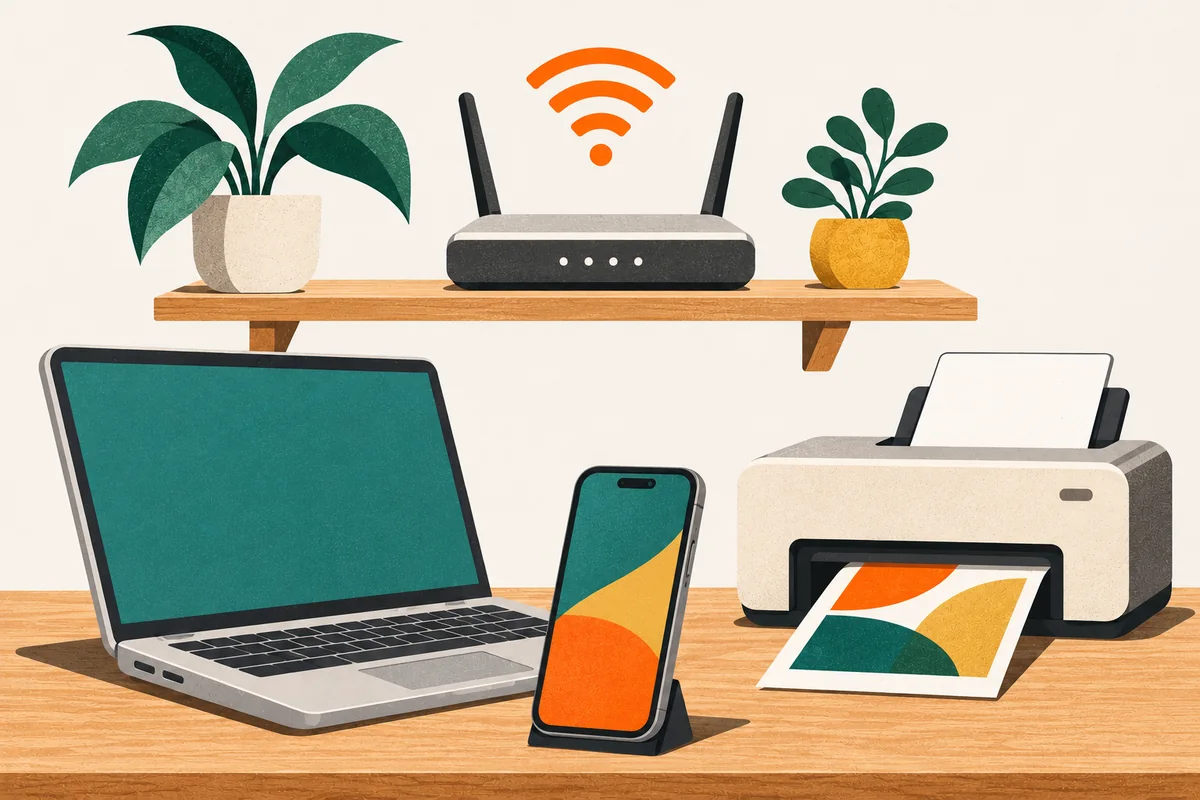
Wi-Fi is useful when several people need the printer, but check the setup instructions before buying. Some models support only the 2.4 GHz band; others support both 2.4 GHz and 5 GHz. Match the printer's requirements to the home network. HP's Wi-Fi setup guidance shows why the supported network and setup device matter.
The printer also needs a suitable place within Wi-Fi coverage, with room for the paper trays and scanner lid. Don't plan to hide it in a cupboard if you need to open the lid or feed paper from the back.
For ordinary AirPrint use, Apple advises connecting the printer and your iPhone or iPad to the same Wi-Fi network. A guest network may prevent devices from finding each other, even when both can browse the internet.
Wi-Fi Direct is a different connection. It connects a device directly to a supported printer rather than through the home router. HP's Wi-Fi Direct guide explains this option. It can be useful, but check how you switch back to your usual network afterwards.
A USB cable can be a straightforward option for one nearby computer, if both devices support it. Check which cable or adapter is required and whether it's included. Ethernet is another option on some models, particularly where a wired network point is available.
4. What will replacement ink or toner cost?
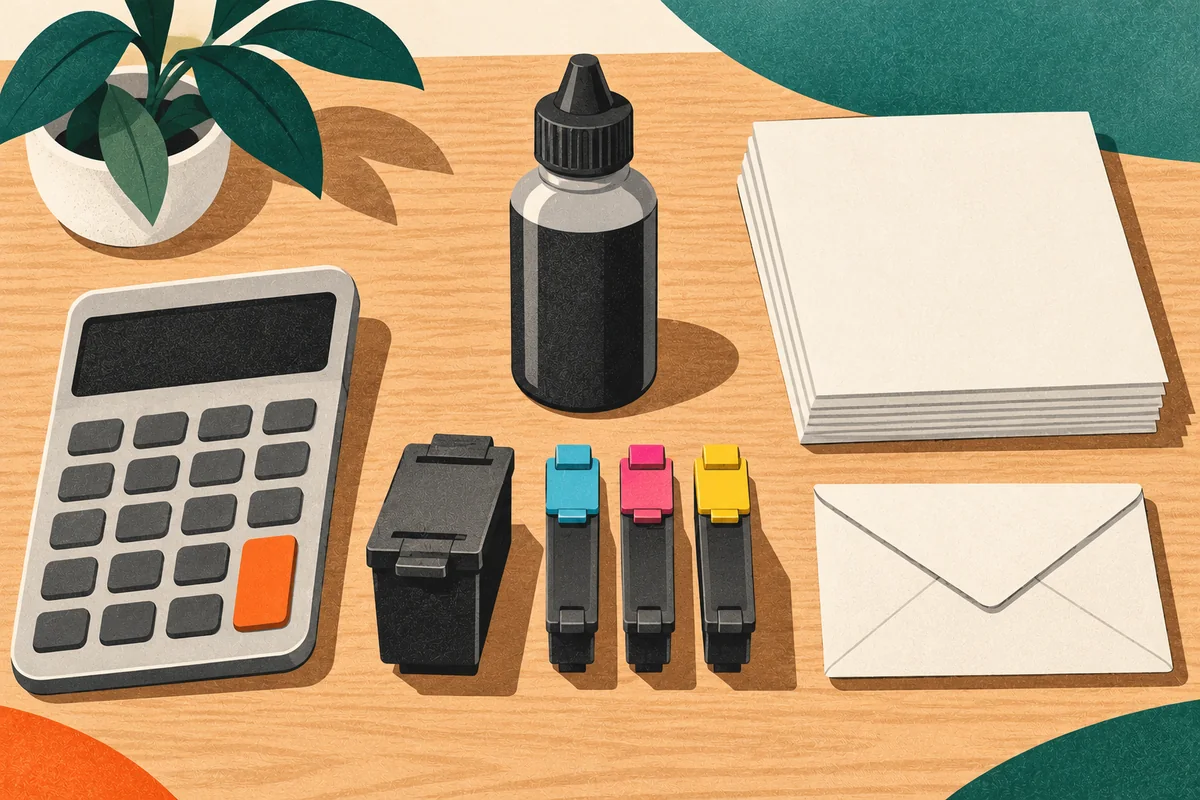
Find the cartridge, toner or refill-bottle codes before paying. Check availability from a supplier you can use and price the replacements, including delivery where relevant.
Look at the stated page yield: the number of pages a supply is expected to print under its test conditions. A simple starting calculation for a black cartridge is:
Cartridge price ÷ stated page yield = estimated ink cost per page.
For example, a hypothetical €40 cartridge rated for 500 pages works out at €0.08, or 8 cent, per page for that ink alone. Those are sample figures, not a current product price or a promise of what you'll get.
Your documents, photos, settings and maintenance affect the result. Epson's explanation of page-yield testing describes why actual yields vary. Don't add the page counts of separate colour cartridges together and treat that as the yield of the set.
For a useful overall comparison, estimate the purchase price plus the supplies you expect to buy over a year or two. Include:
- How much ink or toner comes in the box, and whether those are starter supplies.
- Colour replacements as well as black, if you'll print in colour.
- Any separately replaced drum, maintenance box or other consumable listed for that model.
- Paper, delivery and any subscription fees.
A higher purchase price may make sense if you'll print enough to recover the difference in running costs. For light use, that payback may never arrive. Compare the figures for your expected printing, rather than someone else's busiest month.
5. Is there a subscription or account requirement?
Before accepting a free-ink offer or starting setup, ask what happens after the promotional period. Check whether the service is optional, what the monthly allowance covers, any extra-page charges, and what happens when you cancel.
For a specific example, HP's Irish Instant Ink information says that Instant Ink is optional and that its subscription cartridges stop working after the billing cycle in which you cancel. You need ordinary replacement cartridges to continue printing afterwards. That is a condition of that service, rather than a rule for every printer.
An ink subscription, a printer account and any separately offered service are different things. Read the conditions for the exact model and service. If you want to print without an ongoing account or internet connection, confirm which functions work that way before buying.
6. Which extra features will you actually use?
A few practical features can matter more than a higher advertised print speed:
- Automatic double-sided printing: check that it turns the paper itself if you don't want to reload it manually.
- A scanner and copier: useful for paper documents, but check how copying works without a computer.
- An automatic document feeder: lets you feed several sheets for scanning. Double-sided scanning is a separate feature to confirm.
- Simple controls: try loading paper, finding the copy button and reading the display.
Check the space needed with the trays open, the paper sizes it accepts and how easily you can reach the cartridges or tanks. If the printer is a gift, keep the receipt and confirm the seller's Christmas exchange arrangements too.
Your checklist before buying a printer
Before you pay, you should know:
- Whether you need colour or photos, and how often you'll print.
- That the exact model supports printing and scanning from your devices.
- How it will connect to your home network or computer.
- The replacement supply codes, prices and stated yields.
- The account, subscription and internet requirements, if any.
- That it fits the space and has the controls and features you'll use.
Once it's home, test printing from each device that needs it, and test scanning if that's part of the plan. If you're preparing a new computer too, my Christmas laptop setup checklist covers the other everyday checks.
Would you like a hand connecting it?
Send me the printer model you're considering, the devices you want to use it with and your Eircode. Please don't send passwords or private documents.
I'm Flo, and I help with printers, new devices and home Wi-Fi through technology house calls across the Copper Coast and rural Waterford. You can read more about me here, or see what happens during a house call. I'll help work out the next step and confirm availability before you book.
The artwork in this guide is AI-generated editorial illustration.